
Introduction
HTML links are used to connect one page to another page. They allow users to move between different web pages, websites, or sections of the same page.
Links are a fundamental part of the web. Without links, browsing the internet would not be possible. They also play an important role in SEO by helping search engines understand the structure of your website.
What You’ll Learn
- HTML <a> (anchor) tag
- href attribute
- Different types of links
- How to open links in a new tab
- Real-world usage of links
🔹 The <a> (Anchor) Tag
HTML links are created using the <a> tag.
The anchor tag is one of the most important tags in HTML because it is used to create navigation between pages.
Basic Syntax
<a href="URL">Link Text</a>
Explanation:
<a>→ Anchor tag used to create a linkhref→ Specifies the destination URL- Link Text → The clickable text visible to users
🔹 Types of Links
1️⃣ External Link
Links to another website.
<a href="https://google.com">Go to Google</a>
A clickable text “Go to Google” will appear. When clicked, it opens the Google website.
2️⃣ Internal Link
Links to another page on the same website.
<a href="about.html">About Us</a>
👉 Very useful for website navigation.
3️⃣ Open Link in New Tab
<a href="https://google.com" target="_blank">Open Google</a>
The target="_blank" attribute opens the link in a new tab.
This is useful when you don’t want users to leave your website.
However, it should be used carefully to avoid opening too many tabs unnecessarily.
🔹 Link Title Attribute
Adds extra information when user hovers.
<a href="https://example.com" title="Visit Example Website">Example</a>
🔹 Email Link
You can create a link to send an email using mailto:.
<a href="mailto:info@example.com">Send Email</a>
🔹 Phone Link
You can also create clickable phone links.
<a href="tel:+911234567890">Call Now</a>
How Links Appear in Browser
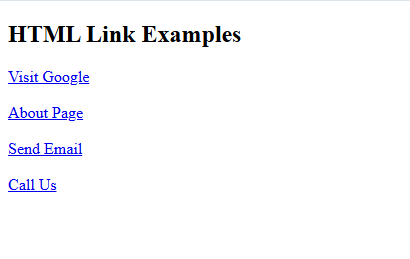
By default, links appear as:
- Blue in color
- Underlined
- Clickable
Visited links may appear in a different color (usually purple), depending on the browser.
🔹 Absolute vs Relative URLs
There are two types of URLs used in links:
Absolute URL:
A full web address including https://
Example:
<a href=”https://www.google.com”>Google</a>
Relative URL:
A link to a page within your website
Example:
<a href=”about.html”>About Page</a>
How to Use Links in Real Web Pages
Links are used everywhere on websites:
- Navigation menus (Home, About, Contact)
- Buttons (Buy Now, Learn More)
- Internal linking between blog posts
Internal links are especially important for SEO because they help search engines understand your website structure.
For example, you can link one tutorial to another:
<a href="html-headings.html">Learn Headings</a>
This helps users easily move between your posts and pages.
🔹 Download Link in HTML
You can create a link that allows users to download files such as PDF, DOC, images, or other documents.
This is done using the download attribute in the <a> tag.
Example:
<a href="sample.pdf" download>Download PDF</a>
Explanation:
href→ Specifies the file locationdownload→ Tells the browser to download the file instead of opening it
Example with File Name:
<a href="sample.pdf" download="MyFile.pdf">Download File</a>
👉 This will download the file with the name MyFile.pdf.
Important Notes:
- The file should be available on your server or a valid URL
- Some browsers may still open certain files instead of downloading
- Works best with files like:
- DOC
- ZIP
- Images
Real Use Case:
Download links are commonly used for:
- PDF notes
- eBooks
- Resume downloads
- Project files
Complete Example
<!DOCTYPE html>
<html>
<head>
    <title>HTML Links</title>
</head>
<body>

<h2>HTML Link Examples</h2>

<a href="https://google.com" target="_blank">Visit Google</a><br><br>

<a href="about.html">About Page</a><br><br>

<a href="mailto:info@divphptutorials.com">Send Email</a><br><br>

<a href="tel:+911234567890">Call Us</a>

</body>
</html>
This example shows different types of links including external links, internal links, email links, and phone links in a single HTML page.
How Output Looks in Browser:
Key Points to Remember
- Links should always have meaningful text for better accessibility.
- Avoid using “Click Here”
- Make sure the URL is correct
- Use internal links to connect your pages
- Links improve SEO and user experience
- Avoid using too many links on a single page.
Common Mistakes
- Forgetting to add
href - Using incorrect or broken links
- Not closing the
<a>tag - Using links without proper text
Practice Tasks
Now try these exercises:
- Task 1: Create a link that opens Google in the browser.
- Task 2: Create a link that opens in a new tab.
- Task 3: Create an internal link to another HTML page.
- Task 4: Create an email link using
mailto:. - Task 5: Create a link with a title attribute and check the tooltip on hover.
FAQs
What is the <a> tag in HTML?
The <a> tag is used to create hyperlinks in HTML.
What is the href attribute?
The href attribute specifies the destination URL of the link.
Can I link to my own webpage?
Yes, you can create internal links to connect pages within your website.
Conclusion
HTML links are essential for navigating between web pages. Using the <a> tag and href attribute, you can create different types of links such as external links, internal links, email links, and more.
In the next tutorial, you will learn about HTML Images to build better web pages.