
Introduction
A personal portfolio website is one of the most important projects for any web developer. It helps you showcase your skills, projects, and contact information in a professional way.
👉 This project is commonly used in:
- Freelancing profiles
- Job applications
- Personal branding
👉 It is also one of the most searched beginner projects in HTML and CSS.
What You’ll Learn
- Creating a complete webpage layout
- Using Flexbox for alignment
- Styling sections like header, about, and contact
- Making a responsive design
- Building a real-world project
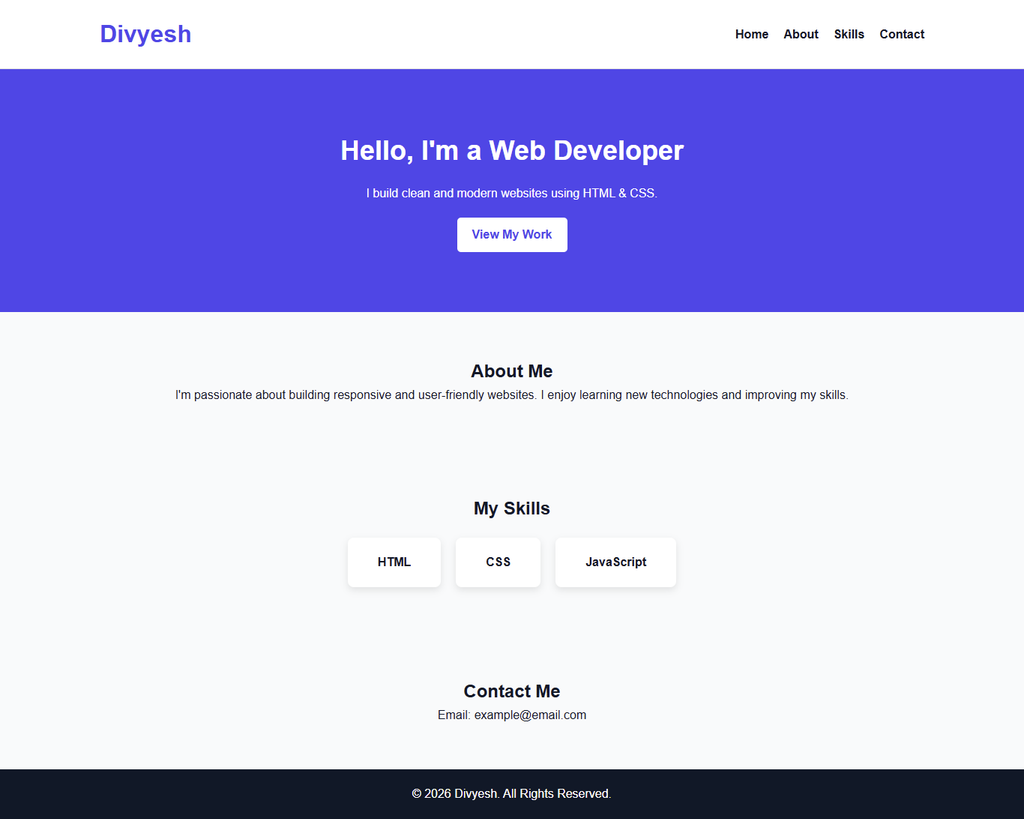
Final Result
Step 1: Create HTML file (index.html)
<!DOCTYPE html>
<html lang="en">
<head>
  <meta charset="UTF-8">
  <title>My Portfolio</title>
  <link rel="stylesheet" href="style.css">
</head>
<body>

  <!-- Header -->
  <header class="header">
    <div class="container">
      <h1 class="logo">Divyesh</h1>
      <nav>
        <ul class="nav-links">
          <li><a href="#">Home</a></li>
          <li><a href="#">About</a></li>
          <li><a href="#">Skills</a></li>
          <li><a href="#">Contact</a></li>
        </ul>
      </nav>
    </div>
  </header>

  <!-- Hero Section -->
  <section class="hero">
    <div class="container">
      <h2>Hello, I'm a Web Developer</h2>
      <p>I build clean and modern websites using HTML & CSS.</p>
      <a href="#" class="btn">View My Work</a>
    </div>
  </section>

  <!-- About Section -->
  <section class="about">
    <div class="container">
      <h2>About Me</h2>
      <p>
        I'm passionate about building responsive and user-friendly websites.
        I enjoy learning new technologies and improving my skills.
      </p>
    </div>
  </section>

  <!-- Skills Section -->
  <section class="skills">
    <div class="container">
      <h2>My Skills</h2>
      <div class="skill-cards">
        <div class="card">HTML</div>
        <div class="card">CSS</div>
        <div class="card">JavaScript</div>
      </div>
    </div>
  </section>

  <!-- Contact Section -->
  <section class="contact">
    <div class="container">
      <h2>Contact Me</h2>
      <p>Email: example@email.com</p>
    </div>
  </section>

  <!-- Footer -->
  <footer class="footer">
    <p>© 2026 Divyesh. All Rights Reserved.</p>
  </footer>

</body>
</html>
Step 2: CSS Styling (style.css)
/* =======================
   CSS Variables
======================= */
:root {
  --primary-color: #4f46e5;
  --dark-color: #111827;
  --light-color: #f9fafb;
  --gray-color: #6b7280;
}

/* =======================
   Global Styles
======================= */
* {
  margin: 0;
  padding: 0;
  box-sizing: border-box;
}

body {
  font-family: Arial, sans-serif;
  background-color: var(--light-color);
  color: var(--dark-color);
  line-height: 1.6;
}

.container {
  width: 90%;
  max-width: 1100px;
  margin: auto;
}

/* =======================
   Header
======================= */
.header {
  background: white;
  padding: 20px 0;
  border-bottom: 1px solid #ddd;
}

.header .container {
  display: flex;
  justify-content: space-between;
  align-items: center;
}

.logo {
  color: var(--primary-color);
}

.nav-links {
  list-style: none;
  display: flex;
  gap: 20px;
}

.nav-links a {
  text-decoration: none;
  color: var(--dark-color);
  font-weight: bold;
}

.nav-links a:hover {
  color: var(--primary-color);
}

/* =======================
   Hero Section
======================= */
.hero {
  padding: 80px 0;
  text-align: center;
  background: var(--primary-color);
  color: white;
}

.hero h2 {
  font-size: 36px;
  margin-bottom: 15px;
}

.btn {
  display: inline-block;
  margin-top: 20px;
  padding: 10px 20px;
  background: white;
  color: var(--primary-color);
  text-decoration: none;
  border-radius: 5px;
  font-weight: bold;
  transition: 0.3s;
}

.btn:hover {
  background: #e0e7ff;
}

/* =======================
   Sections
======================= */
section {
  padding: 60px 0;
  text-align: center;
}

.skills .skill-cards {
  display: flex;
  justify-content: center;
  gap: 20px;
  margin-top: 20px;
}

.card {
  background: white;
  padding: 20px 40px;
  border-radius: 8px;
  box-shadow: 0 4px 10px rgba(0,0,0,0.1);
  font-weight: bold;
}

/* =======================
   Footer
======================= */
.footer {
  background: var(--dark-color);
  color: white;
  text-align: center;
  padding: 20px 0;
}

/* CSS for Making Responsive */
@media (max-width: 768px) {
  .nav-links {
    flex-direction: column;
    gap: 10px;
  }

  .skills .skill-cards {
    flex-direction: column;
  }

  .hero h2 {
    font-size: 24px;
  }
}
Step-by-Step Explanation
1️⃣ Header Section
The header contains your logo and navigation menu.
- Uses Flexbox for alignment
- Keeps logo on left and menu on right
👉 This is used in almost every website.
2️⃣ Hero Section
This is the main introduction area.
- Includes heading, description, and button
- Uses background color to highlight section
👉 First impression of your website.
3️⃣ About Section
This section introduces you.
- Short description about your skills
- Helps visitors understand who you are
4️⃣ Skills Section
Displays your skills using cards.
- Uses Flexbox for layout
- Cards improve visual appearance
👉 Common in portfolio websites.
5️⃣ Contact Section
Provides your contact information.
👉 Helps recruiters or clients reach you.
6️⃣ Footer
Shows copyright information.
👉 Standard part of every website.
🎯 What You Learned in This Project
✔ Real layout structure
✔ Flexbox navigation
✔ CSS Variables
✔ Modern spacing
✔ Hover effects
✔ Card design
✔ Section organization
👉 This project gives you a strong foundation to build your own portfolio website.
👉 You can now customize it and use it in real projects or freelancing work.
Improvements You Can Try
- Add profile image
- Add social media links
- Add animations
- Add project images
- Convert layout using CSS Grid
👉 These improvements make your portfolio more professional.
Best Practice for Managing Projects
📁 Project Folder Setup
Before starting the project, create the following folder structure:
HTML CSS Projects
│
├── Project 1 - Personal Portfolio
│       ├── index.html
│       └── style.css
│
├── Project 2 - Landing Page
│       ├── index.html
│       └── style.css
│
├── Project 3 - Product Page
│       ├── index.html
│       └── style.css
│
├── Project 4 - Blog Layout
│       ├── index.html
│       └── style.css
💡 Why This Structure?
- Keeps all projects organized
- Easy to revise later
- Looks professional
- Same structure used in real development
🔗 Related Posts
- 👉 Responsive Blog Layout Using HTML & CSS (Complete Project Tutorial)
- 👉 Modern Landing Page Design Using HTML & CSS (Beginner Project)
- 👉 Simple Product Page Design Using HTML & CSS (Step-by-Step Guide)
- 👉 CSS Flexbox Complete Guide (Beginner to Advanced)
- 👉 CSS Grid Layout Tutorial with Examples
- 👉 Responsive Design in CSS (Media Queries Explained)