
Introduction
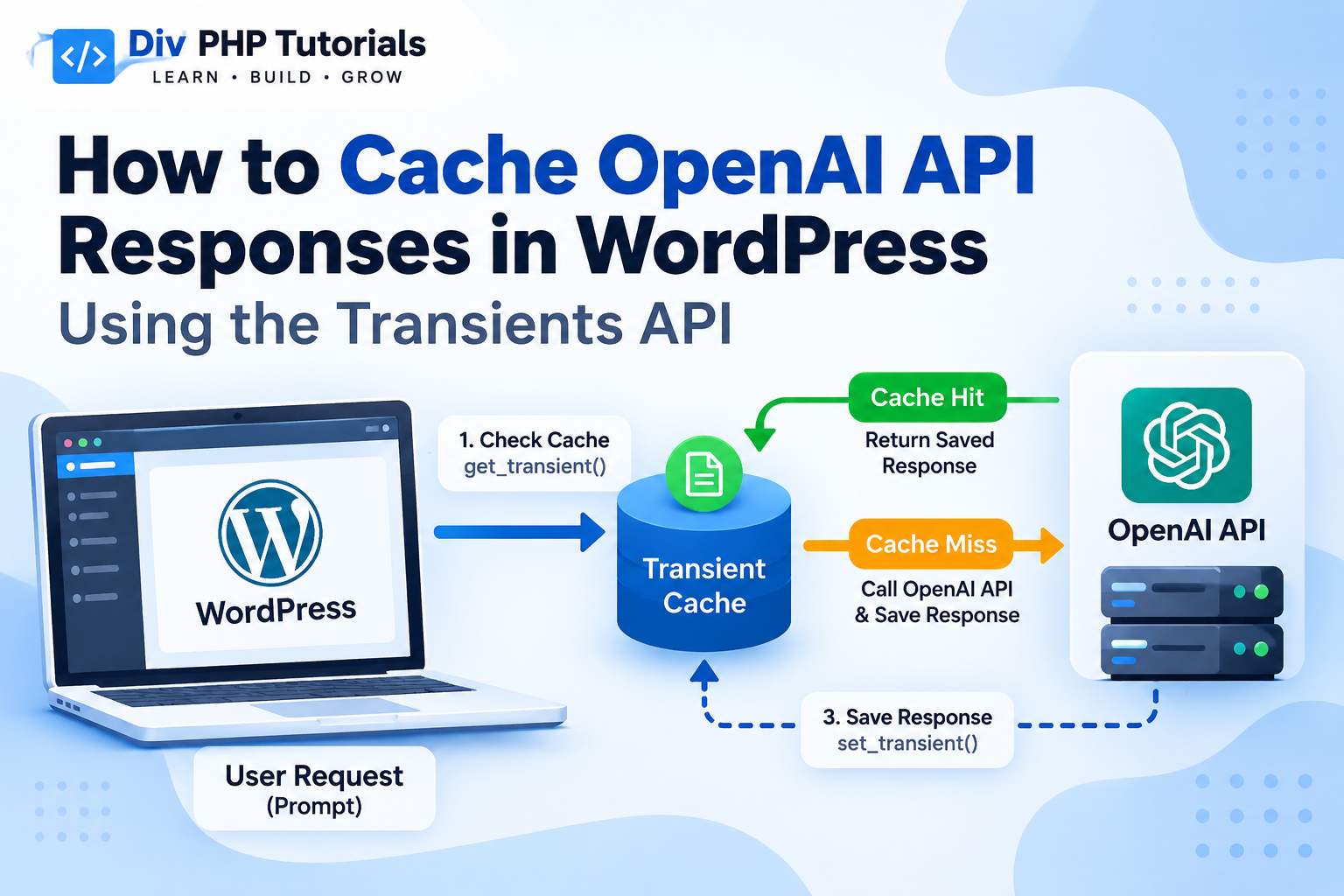
Artificial intelligence (AI) is becoming increasingly useful in WordPress development. Developers can integrate AI into websites to generate content, summarize articles, build chatbots, answer user questions, and automate repetitive tasks.
However, every request sent to an AI API can introduce additional processing time and API usage costs.
Imagine you have a WordPress website that generates a short summary of an article using the OpenAI API. If the same summary is requested repeatedly, your website might send the same request to the API every time.
This creates unnecessary API requests and can increase response times and usage costs.
The solution is caching.
WordPress provides a built-in Transients API that allows developers to store temporary data for a specified period. By caching AI-generated responses, you can reuse previously generated results instead of making a new API request for every identical input.
In this tutorial, you’ll learn how to cache OpenAI API responses using PHP and the WordPress Transients API.
What you’ll learn
- What API response caching is and why it matters.
- How the WordPress Transients API works.
- How to use
get_transient()andset_transient(). - How to cache OpenAI API responses.
- How to configure cache expiration.
- How to clear cached responses when necessary.
- How to handle API errors and common caching problems.
Prerequisites: Basic PHP knowledge, a working WordPress website, an OpenAI API key, and familiarity with making API requests from WordPress.
1. What Is API Response Caching?
API response caching means temporarily storing the result of an API request so that your application can reuse it later.
Without caching, every request may call the external API again.
With caching, WordPress first checks whether a usable result already exists. If it does, WordPress returns the cached result. Otherwise, it calls the API and stores a successful response for future use.
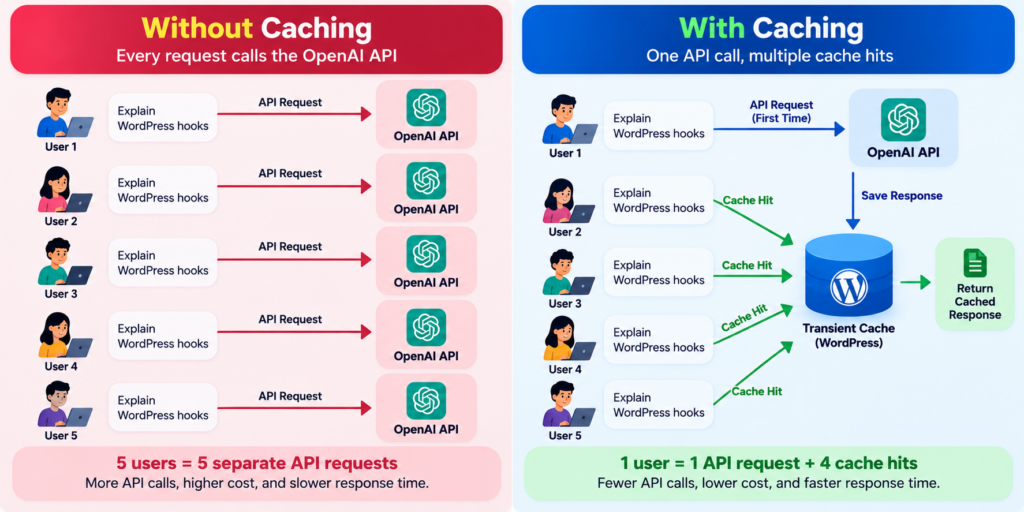
Example without caching
Suppose five visitors request the same AI-generated explanation.
Your website could send five separate API requests, even though the prompt is identical.
Example with caching
If the first request generates the explanation and stores it in the cache, subsequent requests can reuse the saved result while it remains available.
This can reduce repeated API calls and improve response times.
2. What Is the WordPress Transients API?
The WordPress Transients API provides a standard way to store temporary data with an expiration time.
It is useful for caching information such as:
- External API responses.
- Frequently used query results.
- Temporary calculations.
- Remote service data.
- Generated summaries and explanations.
The main functions used in this tutorial are:
| Function | Purpose |
|---|---|
set_transient() | Stores a value with an expiration time |
get_transient() | Retrieves a stored value |
delete_transient() | Removes a cached value |
WordPress may store transients in its database or use a persistent object cache, depending on the site’s configuration. Transients can also disappear before their expiration time, so your code must be able to regenerate missing data. https://developer.wordpress.org/apis/transients/
Understanding set_transient()
The basic syntax is:
set_transient(
    $transient,
    $value,
    $expiration
);
The parameters are:
$transient: A unique name for the cached value.$value: The data you want to store.$expiration: The maximum lifetime in seconds.
For example, to store a value for one hour:
set_transient(
    'divphp_example_cache',
    'Hello from the cache!',
    HOUR_IN_SECONDS
);
WordPress provides time constants such as MINUTE_IN_SECONDS, HOUR_IN_SECONDS, and DAY_IN_SECONDS to make expiration settings easier to understand. https://developer.wordpress.org/reference/functions/set_transient/
Understanding get_transient()
Use get_transient() to retrieve a cached value:
$cached_value = get_transient(
    'divphp_example_cache'
);
If the transient is missing or expired, the function returns false.
Use a strict comparison when checking for a cache miss:
if ( false === $cached_value ) {
    // The cached value is unavailable.
}
This is important because a valid cached value might otherwise be mistaken for a cache miss.
3. How Does OpenAI API Caching Work?
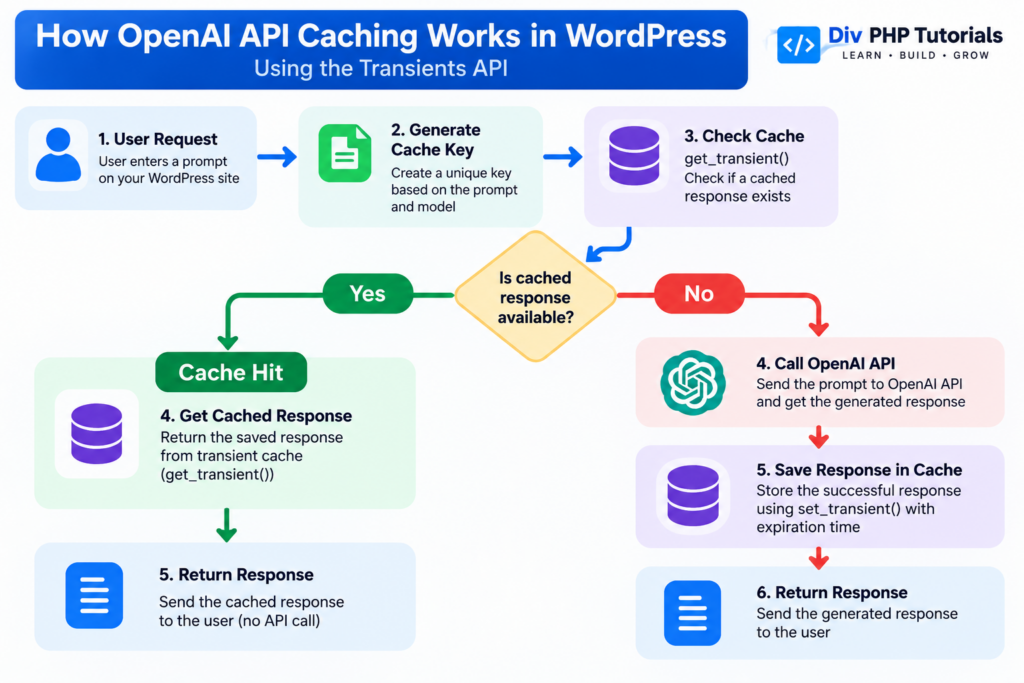
Before writing the code, let’s understand the workflow.
- WordPress receives a prompt.
- PHP creates a cache key based on that prompt and the relevant request settings.
- WordPress checks whether the cached response exists.
- If a valid response is available, WordPress returns it.
- If the cache is empty, WordPress sends a request to OpenAI.
- WordPress validates the API response.
- If successful, the generated text is stored in the transient cache.
- Future matching requests can reuse the saved response until the cache expires or is deleted.
The solution is caching.
WordPress provides a built-in Transients API that allows developers to store temporary data for a specified period. By caching AI-generated responses, you can reuse previously generated results instead of making a new API request for every identical input.
In this tutorial, you’ll learn how to cache OpenAI API responses using PHP and the WordPress Transients API.
What you’ll learn
- What API response caching is and why it matters.
- How the WordPress Transients API works.
- How to use
get_transient()andset_transient(). - How to cache OpenAI API responses.
- How to configure cache expiration.
- How to clear cached responses when necessary.
- How to handle API errors and common caching problems.
Prerequisites: Basic PHP knowledge, a working WordPress website, an OpenAI API key, and familiarity with making API requests from WordPress.
1. What Is API Response Caching?
API response caching means temporarily storing the result of an API request so that your application can reuse it later.
Without caching, every request may call the external API again.
With caching, WordPress first checks whether a usable result already exists. If it does, WordPress returns the cached result. Otherwise, it calls the API and stores a successful response for future use.
Example without caching
Suppose five visitors request the same AI-generated explanation.
Your website could send five separate API requests, even though the prompt is identical.
Example with caching
If the first request generates the explanation and stores it in the cache, subsequent requests can reuse the saved result while it remains available.
This can reduce repeated API calls and improve response times.
2. What Is the WordPress Transients API?
The WordPress Transients API provides a standard way to store temporary data with an expiration time.
It is useful for caching information such as:
- External API responses.
- Frequently used query results.
- Temporary calculations.
- Remote service data.
- Generated summaries and explanations.
The main functions used in this tutorial are:
| Function | Purpose |
|---|---|
set_transient() | Stores a value with an expiration time |
get_transient() | Retrieves a stored value |
delete_transient() | Removes a cached value |
WordPress may store transients in its database or use a persistent object cache, depending on the site’s configuration. Transients can also disappear before their expiration time, so your code must be able to regenerate missing data. https://developer.wordpress.org/apis/transients/
Understanding set_transient()
The basic syntax is:
set_transient(
    $transient,
    $value,
    $expiration
);
The parameters are:
$transient: A unique name for the cached value.$value: The data you want to store.$expiration: The maximum lifetime in seconds.
For example, to store a value for one hour:
set_transient(
    'divphp_example_cache',
    'Hello from the cache!',
    HOUR_IN_SECONDS
);
WordPress provides time constants such as MINUTE_IN_SECONDS, HOUR_IN_SECONDS, and DAY_IN_SECONDS to make expiration settings easier to understand. https://developer.wordpress.org/reference/functions/set_transient/
Understanding get_transient()
Use get_transient() to retrieve a cached value:
$cached_value = get_transient(
    'divphp_example_cache'
);
If the transient is missing or expired, the function returns false.
Use a strict comparison when checking for a cache miss:
if ( false === $cached_value ) {
    // The cached value is unavailable.
}
This is important because a valid cached value might otherwise be mistaken for a cache miss.
3. How Does OpenAI API Caching Work?
Before writing the code, let’s understand the workflow.
- WordPress receives a prompt.
- PHP creates a cache key based on that prompt and the relevant request settings.
- WordPress checks whether the cached response exists.
- If a valid response is available, WordPress returns it.
- If the cache is empty, WordPress sends a request to OpenAI.
- WordPress validates the API response.
- If successful, the generated text is stored in the transient cache.
- Future matching requests can reuse the saved response until the cache expires or is deleted.
4. Configure Your OpenAI API Key
If you followed our previous tutorial, you may already have configured your API key.
For a simple example, open your WordPress wp-config.php file and add the following line before the comment that says “That’s all, stop editing!”:
define(
    'OPENAI_API_KEY',
    'your-secret-api-key-here'
);
Replace the placeholder with your actual API key.
Never expose the API key in frontend JavaScript, HTML, or a public repository. For production environments, consider a server environment variable or a dedicated secrets manager.
Important: ChatGPT subscriptions and API usage are separate. Check that your API project has access to the selected model and the necessary billing configuration.
5. Create a Function to Call the OpenAI API
Before implementing caching, let’s create a helper function that sends a prompt to OpenAI and returns the generated text.
This example uses WordPress’s native wp_remote_post() function and the OpenAI Responses API.
Add the following function to a small custom plugin or your existing plugin:
function divphp_call_openai_api( $prompt ) {

    if (
        ! defined( 'OPENAI_API_KEY' ) ||
        empty( OPENAI_API_KEY )
    ) {
        return new WP_Error(
            'missing_api_key',
            'OpenAI API key is not configured.'
        );
    }

    $request_body = array(
        'model'             => 'gpt-4.1-mini',
        'input'             => $prompt,
        'max_output_tokens' => 300,
    );

    $response = wp_remote_post(
        'https://api.openai.com/v1/responses',
        array(
            'headers' => array(
                'Authorization' => 'Bearer ' . OPENAI_API_KEY,
                'Content-Type'  => 'application/json',
            ),
            'body'        => wp_json_encode( $request_body ),
            'timeout'     => 30,
            'redirection' => 0,
        )
    );

    if ( is_wp_error( $response ) ) {
        return new WP_Error(
            'openai_connection_error',
            'Unable to connect to the OpenAI API.'
        );
    }

    $status_code = wp_remote_retrieve_response_code(
        $response
    );

    $body = wp_remote_retrieve_body( $response );

    $data = json_decode( $body, true );

    if (
        $status_code < 200 ||
        $status_code >= 300
    ) {
        return new WP_Error(
            'openai_http_error',
            'The OpenAI API request was unsuccessful.',
            array(
                'status' => $status_code,
            )
        );
    }

    if (
        ! is_array( $data ) ||
        ! empty( $data['error'] )
    ) {
        return new WP_Error(
            'openai_invalid_response',
            'The API returned an invalid response.'
        );
    }

    $generated_text = '';

    if (
        ! empty( $data['output'] ) &&
        is_array( $data['output'] )
    ) {
        foreach ( $data['output'] as $output_item ) {

            if (
                isset( $output_item['type'] ) &&
                'message' === $output_item['type'] &&
                ! empty( $output_item['content'] ) &&
                is_array( $output_item['content'] )
            ) {
                foreach (
                    $output_item['content'] as $content_item
                ) {
                    if (
                        isset( $content_item['type'] ) &&
                        'output_text' === $content_item['type'] &&
                        isset( $content_item['text'] )
                    ) {
                        $generated_text .=
                            $content_item['text'];
                    }
                }
            }
        }
    }

    if ( '' === trim( $generated_text ) ) {
        return new WP_Error(
            'openai_empty_output',
            'The API did not return generated text.'
        );
    }

    return trim( $generated_text );
}
How this function works
The function:
- Checks whether the API key is configured.
- Prepares a JSON request.
- Sends the request to the OpenAI Responses API.
- Handles WordPress HTTP errors.
- Checks the HTTP status code.
- Decodes the JSON response.
- Extracts the generated text.
- Returns the text or a
WP_Errorobject.
The example uses gpt-4.1-mini. Confirm that the model is available to your API project and review current model pricing before deploying the integration.
Official API documentation: https://developers.openai.com/api/docs/guides/text
6. Add Caching Using the WordPress Transients API
Now let’s create the main function that combines OpenAI API requests with caching.
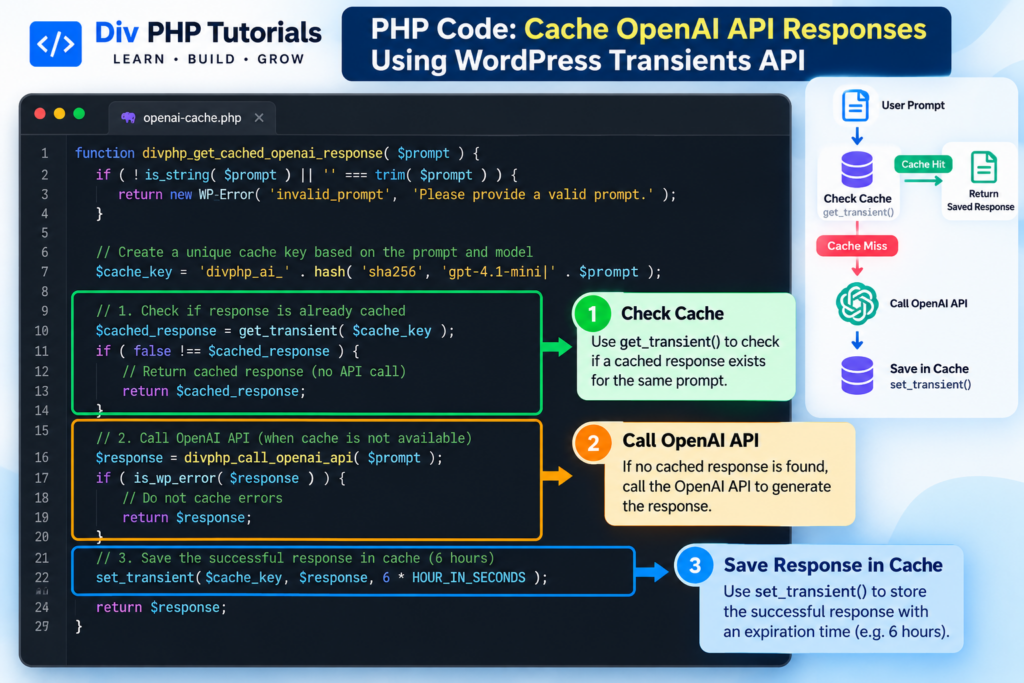
Instead of calling the API every time, this function first checks whether a cached response exists.
function divphp_get_cached_openai_response( $prompt ) {

    if (
        ! is_string( $prompt ) ||
        '' === trim( $prompt )
    ) {
        return new WP_Error(
            'invalid_prompt',
            'Please provide a valid prompt.'
        );
    }

    $prompt = trim( $prompt );

    // Build a cache key using the prompt and model.
    $cache_key = 'divphp_ai_' . hash(
        'sha256',
        'gpt-4.1-mini|' . $prompt
    );

    // Check the cache.
    $cached_response = get_transient(
        $cache_key
    );

    if ( false !== $cached_response ) {
        return $cached_response;
    }

    // Generate a response when the cache is unavailable.
    $response = divphp_call_openai_api(
        $prompt
    );

    // Do not cache errors.
    if ( is_wp_error( $response ) ) {
        return $response;
    }

    // Cache the successful response for six hours.
    set_transient(
        $cache_key,
        $response,
        6 * HOUR_IN_SECONDS
    );

    return $response;
}
What changed?
The function now checks the transient before calling the API.
Cache hit: The stored response is returned without making a new OpenAI API request.
Cache miss: The function calls OpenAI and saves a successful response for up to six hours.
The cache key uses a SHA-256 hash of the prompt and model identifier. This avoids putting the full prompt into the transient name and keeps the key within WordPress’s length limits.
If you change the model, system instructions, output settings, or other parameters that affect the result, include those settings in the cache key as well.
7. Test the Cached OpenAI Response
You can now call the caching function from your plugin.
For example:
$prompt = 'Explain WordPress hooks in three short bullet points.';

$result = divphp_get_cached_openai_response(
    $prompt
);

if ( is_wp_error( $result ) ) {

    // Handle the error without exposing sensitive details.
    error_log(
        'OpenAI request failed: ' .
        $result->get_error_code()
    );

} else {

    // Escape the output when displaying it in HTML.
    echo '<div class="ai-response">';
    echo esc_html( $result );
    echo '</div>';

}
This demonstrates how to call the function and display its output.
In a production plugin, place this code in an appropriate WordPress action, shortcode callback, or protected endpoint rather than executing it unconditionally on every page load.
If the same prompt is requested again while the transient is available, the saved response can be reused.
How can you verify that caching works?
For development, you can temporarily add logging around the cache lookup and API call:
if ( false !== $cached_response ) {

    error_log( 'OpenAI cache hit.' );

    return $cached_response;
}

error_log( 'OpenAI cache miss.' );
Make sure you don’t log API keys, private prompts, personal data, or generated content that could contain sensitive information.
Test the same prompt twice. The first request should normally be a cache miss; the second should normally be a cache hit, unless the transient was removed or unavailable.
8. How to Change the Cache Expiration Time
The expiration value determines the maximum amount of time a transient should remain available.
In our example, the cache lasts up to six hours:
set_transient(
    $cache_key,
    $response,
    6 * HOUR_IN_SECONDS
);
You can change the duration depending on how frequently the generated result needs to be refreshed.
| Cache duration | Example | Suitable use |
|---|---|---|
| 10 minutes | 10 * MINUTE_IN_SECONDS | Frequently changing information |
| 1 hour | HOUR_IN_SECONDS | Short-lived AI responses |
| 6 hours | 6 * HOUR_IN_SECONDS | Repeated summaries and explanations |
| 1 day | DAY_IN_SECONDS | Stable content that can be reused longer |
These are examples, not universal recommendations. Choose an expiration period that fits your application’s freshness requirements.
Important: Transient expiration is a maximum lifetime, not a guarantee that the data will remain available for the entire period. WordPress may remove a transient earlier, so your application must be able to regenerate it. https://developer.wordpress.org/news/2024/06/an-introduction-to-the-transients-api/
9. How to Clear a Cached OpenAI Response
Sometimes you need to remove a cached response before its expiration time.
WordPress provides delete_transient() for this purpose.
delete_transient(
    'divphp_example_cache'
);
The name passed to delete_transient() must match the name used when saving the value.
In our main example, the cache key is generated from the prompt and model. To delete a specific cached response, generate the same key:
function divphp_clear_openai_response_cache(
    $prompt
) {
    $prompt = trim( $prompt );

    $cache_key = 'divphp_ai_' . hash(
        'sha256',
        'gpt-4.1-mini|' . $prompt
    );

    return delete_transient( $cache_key );
}
You can call this function when you know that a particular cached result is no longer appropriate.
For example, you may want to invalidate a cached result after changing the prompt instructions or updating the underlying content used to generate it.
If you need a global “clear all AI cache” feature, consider using a dedicated cache version or a carefully designed index of keys. Avoid directly deleting unrelated WordPress transients from the database.
10. Important Caching Considerations
Caching can reduce repeated API requests, but it must be implemented thoughtfully.
Cache only suitable responses
Don’t cache WP_Error objects, failed API responses, or incomplete output as if they were successful results.
Use an appropriate cache key
The cache key should include all relevant settings that influence the response, such as the model, prompt, system instructions, language, and output format.
Otherwise, two different requests might accidentally reuse the same cached result.
Be careful with private data
Avoid sharing cached responses across users when the response depends on private account information, permissions, or personal data.
If a response is user-specific, include a suitable user or context identifier in the cache key, and consider whether caching the response is appropriate at all.
Don’t assume the cache always exists
A transient can disappear early. Always handle a cache miss by regenerating the result when appropriate.
Consider simultaneous requests
If several requests for the same uncached prompt arrive simultaneously, they may all call the API before any response is saved. This is known as a cache stampede.
For high-traffic applications, consider a short-lived lock, background processing, or another coordination strategy to reduce duplicate requests.
Monitor API usage
Caching can reduce repeated calls, but it does not eliminate costs for requests that miss the cache. Check current pricing and usage limits in your OpenAI API project.
11. Common Problems and Solutions
Problem 1: The API Is Called Every Time
Possible causes:
- The cache key changes between requests.
- The transient expires or is removed.
- The response is not being stored successfully.
- The prompt or model settings differ between calls.
Solution: Log cache hits and misses during development, verify the key generation, and confirm that the transient is being saved.
Problem 2: The Cached Response Is Outdated
Cause: The expiration period is too long, or the underlying content has changed.
Solution: Reduce the cache duration or invalidate the relevant cache when the source data changes.
Problem 3: The API Returns an Error
Possible causes:
- Invalid API key.
- Model access or billing issue.
- Network failure.
- Rate limit exceeded.
- Invalid request format.
Solution: Check the API status code, server logs, and API project configuration. Avoid exposing raw internal errors to website visitors.
Problem 4: The Transient Is Missing Before Expiration
Cause: WordPress transients are temporary cache entries and may disappear earlier than expected.
Solution: Treat a missing transient as a normal cache miss and regenerate the response when necessary.
Problem 5: Two Requests Generate the Same Response at Once
Cause: Multiple requests arrive before the first API response has been cached.
Solution: Consider a locking or background-processing strategy if duplicate API calls become a real performance or cost issue.
12. When Should You Cache OpenAI API Responses?
Caching is useful when the same inputs are likely to be requested repeatedly and the response can safely be reused.
Examples include:
- AI-generated explanations of programming concepts.
- Summaries of published articles.
- Reusable FAQ answers.
- Public content classification results.
- General chatbot answers that do not depend on personal information.
Caching may be less appropriate when every response must be current, when requests are highly personalized, or when the underlying data changes frequently.
Choose the cache duration and invalidation strategy based on the specific feature you are building.
Conclusion
The WordPress Transients API provides a simple way to cache OpenAI API responses without requiring an additional caching plugin.
By combining get_transient(), set_transient(), and delete_transient() with a reusable API function, you can avoid many repeated API calls, reduce unnecessary usage, and improve response times for suitable requests.
Remember that caching is not a replacement for error handling, security, or API usage monitoring. Always handle cache misses, choose appropriate expiration times, and avoid reusing private or outdated responses.
What’s next?
In the next tutorial, we’ll build an AI chatbot in WordPress using PHP, AJAX, and the OpenAI Responses API.
Explore more PHP and WordPress tutorials at:
Frequently Asked Questions
1. What is the WordPress Transients API?
The Transients API allows WordPress developers to store temporary data with an expiration time. It is commonly used to cache API responses and other data that does not need to be regenerated on every request.
2. Does caching OpenAI responses reduce API costs?
It can reduce costs by avoiding repeated API requests for identical inputs while cached responses remain available. Actual savings depend on how often the cache is reused and how much each uncached request costs.
3. How long should I cache OpenAI responses?
It depends on the data. Frequently changing information may need a short cache duration, while stable explanations or article summaries can often be cached longer.
4. What happens when a transient expires?
WordPress will no longer return the expired value through get_transient(). Your code should treat this as a cache miss and generate a fresh response when needed.
5. Can I use the Transients API without a caching plugin?
Yes. The Transients API is built into WordPress. A persistent object cache can improve performance, but it is not required to use transients.
6. Is the WordPress Transients API suitable for AI chatbots?
It can be useful for caching reusable responses, but chatbot conversations often depend on user context and conversation history. Make sure your cache key includes the relevant context and never reuse private responses between unrelated users.
Official References
- WordPress Transients API: https://developer.wordpress.org/apis/transients/
get_transient(): https://developer.wordpress.org/reference/functions/get_transient/set_transient(): https://developer.wordpress.org/reference/functions/set_transient/- OpenAI API documentation: https://developers.openai.com/api/docs/
4. Configure Your OpenAI API Key
If you followed our previous tutorial, you may already have configured your API key.
For a simple example, open your WordPress wp-config.php file and add the following line before the comment that says “That’s all, stop editing!”:
define(
    'OPENAI_API_KEY',
    'your-secret-api-key-here'
);
Replace the placeholder with your actual API key.
Never expose the API key in frontend JavaScript, HTML, or a public repository. For production environments, consider a server environment variable or a dedicated secrets manager.
Important: ChatGPT subscriptions and API usage are separate. Check that your API project has access to the selected model and the necessary billing configuration.
5. Create a Function to Call the OpenAI API
Before implementing caching, let’s create a helper function that sends a prompt to OpenAI and returns the generated text.
This example uses WordPress’s native wp_remote_post() function and the OpenAI Responses API.
Add the following function to a small custom plugin or your existing plugin:
function divphp_call_openai_api( $prompt ) {

    if (
        ! defined( 'OPENAI_API_KEY' ) ||
        empty( OPENAI_API_KEY )
    ) {
        return new WP_Error(
            'missing_api_key',
            'OpenAI API key is not configured.'
        );
    }

    $request_body = array(
        'model'             => 'gpt-4.1-mini',
        'input'             => $prompt,
        'max_output_tokens' => 300,
    );

    $response = wp_remote_post(
        'https://api.openai.com/v1/responses',
        array(
            'headers' => array(
                'Authorization' => 'Bearer ' . OPENAI_API_KEY,
                'Content-Type'  => 'application/json',
            ),
            'body'        => wp_json_encode( $request_body ),
            'timeout'     => 30,
            'redirection' => 0,
        )
    );

    if ( is_wp_error( $response ) ) {
        return new WP_Error(
            'openai_connection_error',
            'Unable to connect to the OpenAI API.'
        );
    }

    $status_code = wp_remote_retrieve_response_code(
        $response
    );

    $body = wp_remote_retrieve_body( $response );

    $data = json_decode( $body, true );

    if (
        $status_code < 200 ||
        $status_code >= 300
    ) {
        return new WP_Error(
            'openai_http_error',
            'The OpenAI API request was unsuccessful.',
            array(
                'status' => $status_code,
            )
        );
    }

    if (
        ! is_array( $data ) ||
        ! empty( $data['error'] )
    ) {
        return new WP_Error(
            'openai_invalid_response',
            'The API returned an invalid response.'
        );
    }

    $generated_text = '';

    if (
        ! empty( $data['output'] ) &&
        is_array( $data['output'] )
    ) {
        foreach ( $data['output'] as $output_item ) {

            if (
                isset( $output_item['type'] ) &&
                'message' === $output_item['type'] &&
                ! empty( $output_item['content'] ) &&
                is_array( $output_item['content'] )
            ) {
                foreach (
                    $output_item['content'] as $content_item
                ) {
                    if (
                        isset( $content_item['type'] ) &&
                        'output_text' === $content_item['type'] &&
                        isset( $content_item['text'] )
                    ) {
                        $generated_text .=
                            $content_item['text'];
                    }
                }
            }
        }
    }

    if ( '' === trim( $generated_text ) ) {
        return new WP_Error(
            'openai_empty_output',
            'The API did not return generated text.'
        );
    }

    return trim( $generated_text );
}
How this function works
The function:
- Checks whether the API key is configured.
- Prepares a JSON request.
- Sends the request to the OpenAI Responses API.
- Handles WordPress HTTP errors.
- Checks the HTTP status code.
- Decodes the JSON response.
- Extracts the generated text.
- Returns the text or a
WP_Errorobject.
The example uses gpt-4.1-mini. Confirm that the model is available to your API project and review current model pricing before deploying the integration.
Official API documentation: https://developers.openai.com/api/docs/guides/text
6. Add Caching Using the WordPress Transients API
Now let’s create the main function that combines OpenAI API requests with caching.
Instead of calling the API every time, this function first checks whether a cached response exists.
function divphp_get_cached_openai_response( $prompt ) {

    if (
        ! is_string( $prompt ) ||
        '' === trim( $prompt )
    ) {
        return new WP_Error(
            'invalid_prompt',
            'Please provide a valid prompt.'
        );
    }

    $prompt = trim( $prompt );

    // Build a cache key using the prompt and model.
    $cache_key = 'divphp_ai_' . hash(
        'sha256',
        'gpt-4.1-mini|' . $prompt
    );

    // Check the cache.
    $cached_response = get_transient(
        $cache_key
    );

    if ( false !== $cached_response ) {
        return $cached_response;
    }

    // Generate a response when the cache is unavailable.
    $response = divphp_call_openai_api(
        $prompt
    );

    // Do not cache errors.
    if ( is_wp_error( $response ) ) {
        return $response;
    }

    // Cache the successful response for six hours.
    set_transient(
        $cache_key,
        $response,
        6 * HOUR_IN_SECONDS
    );

    return $response;
}
What changed?
The function now checks the transient before calling the API.
Cache hit: The stored response is returned without making a new OpenAI API request.
Cache miss: The function calls OpenAI and saves a successful response for up to six hours.
The cache key uses a SHA-256 hash of the prompt and model identifier. This avoids putting the full prompt into the transient name and keeps the key within WordPress’s length limits.
If you change the model, system instructions, output settings, or other parameters that affect the result, include those settings in the cache key as well.
7. Test the Cached OpenAI Response
You can now call the caching function from your plugin.
For example:
$prompt = 'Explain WordPress hooks in three short bullet points.';

$result = divphp_get_cached_openai_response(
    $prompt
);

if ( is_wp_error( $result ) ) {

    // Handle the error without exposing sensitive details.
    error_log(
        'OpenAI request failed: ' .
        $result->get_error_code()
    );

} else {

    // Escape the output when displaying it in HTML.
    echo '<div class="ai-response">';
    echo esc_html( $result );
    echo '</div>';

}
This demonstrates how to call the function and display its output.
In a production plugin, place this code in an appropriate WordPress action, shortcode callback, or protected endpoint rather than executing it unconditionally on every page load.
If the same prompt is requested again while the transient is available, the saved response can be reused.
How can you verify that caching works?
For development, you can temporarily add logging around the cache lookup and API call:
if ( false !== $cached_response ) {

    error_log( 'OpenAI cache hit.' );

    return $cached_response;
}

error_log( 'OpenAI cache miss.' );
Make sure you don’t log API keys, private prompts, personal data, or generated content that could contain sensitive information.
Test the same prompt twice. The first request should normally be a cache miss; the second should normally be a cache hit, unless the transient was removed or unavailable.
8. How to Change the Cache Expiration Time
The expiration value determines the maximum amount of time a transient should remain available.
In our example, the cache lasts up to six hours:
set_transient(
    $cache_key,
    $response,
    6 * HOUR_IN_SECONDS
);
You can change the duration depending on how frequently the generated result needs to be refreshed.
| Cache duration | Example | Suitable use |
|---|---|---|
| 10 minutes | 10 * MINUTE_IN_SECONDS | Frequently changing information |
| 1 hour | HOUR_IN_SECONDS | Short-lived AI responses |
| 6 hours | 6 * HOUR_IN_SECONDS | Repeated summaries and explanations |
| 1 day | DAY_IN_SECONDS | Stable content that can be reused longer |
These are examples, not universal recommendations. Choose an expiration period that fits your application’s freshness requirements.
Important: Transient expiration is a maximum lifetime, not a guarantee that the data will remain available for the entire period. WordPress may remove a transient earlier, so your application must be able to regenerate it. https://developer.wordpress.org/news/2024/06/an-introduction-to-the-transients-api/
9. How to Clear a Cached OpenAI Response
Sometimes you need to remove a cached response before its expiration time.
WordPress provides delete_transient() for this purpose.
delete_transient(
    'divphp_example_cache'
);
The name passed to delete_transient() must match the name used when saving the value.
In our main example, the cache key is generated from the prompt and model. To delete a specific cached response, generate the same key:
function divphp_clear_openai_response_cache(
    $prompt
) {
    $prompt = trim( $prompt );

    $cache_key = 'divphp_ai_' . hash(
        'sha256',
        'gpt-4.1-mini|' . $prompt
    );

    return delete_transient( $cache_key );
}
You can call this function when you know that a particular cached result is no longer appropriate.
For example, you may want to invalidate a cached result after changing the prompt instructions or updating the underlying content used to generate it.
If you need a global “clear all AI cache” feature, consider using a dedicated cache version or a carefully designed index of keys. Avoid directly deleting unrelated WordPress transients from the database.
10. Important Caching Considerations
Caching can reduce repeated API requests, but it must be implemented thoughtfully.
Cache only suitable responses
Don’t cache WP_Error objects, failed API responses, or incomplete output as if they were successful results.
Use an appropriate cache key
The cache key should include all relevant settings that influence the response, such as the model, prompt, system instructions, language, and output format.
Otherwise, two different requests might accidentally reuse the same cached result.
Be careful with private data
Avoid sharing cached responses across users when the response depends on private account information, permissions, or personal data.
If a response is user-specific, include a suitable user or context identifier in the cache key, and consider whether caching the response is appropriate at all.
Don’t assume the cache always exists
A transient can disappear early. Always handle a cache miss by regenerating the result when appropriate.
Consider simultaneous requests
If several requests for the same uncached prompt arrive simultaneously, they may all call the API before any response is saved. This is known as a cache stampede.
For high-traffic applications, consider a short-lived lock, background processing, or another coordination strategy to reduce duplicate requests.
Monitor API usage
Caching can reduce repeated calls, but it does not eliminate costs for requests that miss the cache. Check current pricing and usage limits in your OpenAI API project.
11. Common Problems and Solutions
Problem 1: The API Is Called Every Time
Possible causes:
- The cache key changes between requests.
- The transient expires or is removed.
- The response is not being stored successfully.
- The prompt or model settings differ between calls.
Solution: Log cache hits and misses during development, verify the key generation, and confirm that the transient is being saved.
Problem 2: The Cached Response Is Outdated
Cause: The expiration period is too long, or the underlying content has changed.
Solution: Reduce the cache duration or invalidate the relevant cache when the source data changes.
Problem 3: The API Returns an Error
Possible causes:
- Invalid API key.
- Model access or billing issue.
- Network failure.
- Rate limit exceeded.
- Invalid request format.
Solution: Check the API status code, server logs, and API project configuration. Avoid exposing raw internal errors to website visitors.
Problem 4: The Transient Is Missing Before Expiration
Cause: WordPress transients are temporary cache entries and may disappear earlier than expected.
Solution: Treat a missing transient as a normal cache miss and regenerate the response when necessary.
Problem 5: Two Requests Generate the Same Response at Once
Cause: Multiple requests arrive before the first API response has been cached.
Solution: Consider a locking or background-processing strategy if duplicate API calls become a real performance or cost issue.
12. When Should You Cache OpenAI API Responses?
Caching is useful when the same inputs are likely to be requested repeatedly and the response can safely be reused.
Examples include:
- AI-generated explanations of programming concepts.
- Summaries of published articles.
- Reusable FAQ answers.
- Public content classification results.
- General chatbot answers that do not depend on personal information.
Caching may be less appropriate when every response must be current, when requests are highly personalized, or when the underlying data changes frequently.
Choose the cache duration and invalidation strategy based on the specific feature you are building.
Conclusion
The WordPress Transients API provides a simple way to cache OpenAI API responses without requiring an additional caching plugin.
By combining get_transient(), set_transient(), and delete_transient() with a reusable API function, you can avoid many repeated API calls, reduce unnecessary usage, and improve response times for suitable requests.
Remember that caching is not a replacement for error handling, security, or API usage monitoring. Always handle cache misses, choose appropriate expiration times, and avoid reusing private or outdated responses.
What’s next?
In the next tutorial, we’ll build an AI chatbot in WordPress using PHP, AJAX, and the OpenAI Responses API.
Frequently Asked Questions
1. What is the WordPress Transients API?
The Transients API allows WordPress developers to store temporary data with an expiration time. It is commonly used to cache API responses and other data that does not need to be regenerated on every request.
2. Does caching OpenAI responses reduce API costs?
It can reduce costs by avoiding repeated API requests for identical inputs while cached responses remain available. Actual savings depend on how often the cache is reused and how much each uncached request costs.
3. How long should I cache OpenAI responses?
It depends on the data. Frequently changing information may need a short cache duration, while stable explanations or article summaries can often be cached longer.
4. What happens when a transient expires?
WordPress will no longer return the expired value through get_transient(). Your code should treat this as a cache miss and generate a fresh response when needed.
5. Can I use the Transients API without a caching plugin?
Yes. The Transients API is built into WordPress. A persistent object cache can improve performance, but it is not required to use transients.
6. Is the WordPress Transients API suitable for AI chatbots?
It can be useful for caching reusable responses, but chatbot conversations often depend on user context and conversation history. Make sure your cache key includes the relevant context and never reuse private responses between unrelated users.
Official References
- WordPress Transients API: https://developer.wordpress.org/apis/transients/
get_transient(): https://developer.wordpress.org/reference/functions/get_transient/set_transient(): https://developer.wordpress.org/reference/functions/set_transient/- OpenAI API documentation: https://developers.openai.com/api/docs/

